

All mods on our site come as ready-to-use ZIP files. Do not extract them. Just copy the ZIP into the right folder and start the game. There are two ways to install a mod; both work with every file you download from us.
Method 1: Game Folder (Content)
This is the method we use in our own tests.
Cars, Trucks, Planes, Bikes, Tractors and Excavators
- Download the mod ZIP file.
- Open your BeamNG.drive install folder. On Steam, this is usually:
C:\Program Files (x86)\Steam\steamapps\common\BeamNG.drive\ - Go to
content\vehicles. - Copy the ZIP file into this folder.
- Start the game and open the vehicle selector (Ctrl + E). Your new vehicle will be in the list.
Maps
- Download the map ZIP file.
- Open your BeamNG.drive install folder (see above).
- Go to
content\levels. - Copy the ZIP file into this folder.
- Start the game, choose Freeroam, and select the new map from the list.
Tip: If the game is installed on another drive, right-click BeamNG.drive in your Steam library and choose Manage > Browse local files to open the install folder.
Note: Files in the content folder may be removed when the game updates or when you verify the game files on Steam. If a mod disappears after an update, copy it into the folder again, or use Method 2.
Method 2: User Mods Folder
This is the method recommended by BeamNG. Mods placed here stay safe during game updates, and both vehicles and maps go into the same folder.
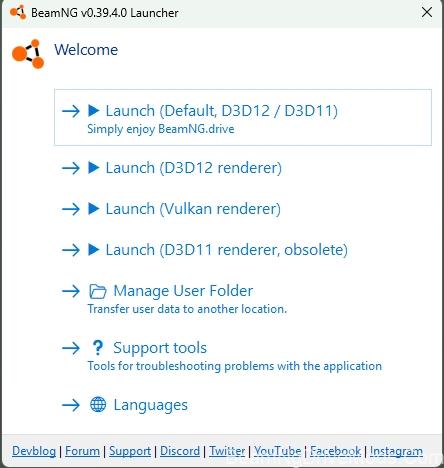
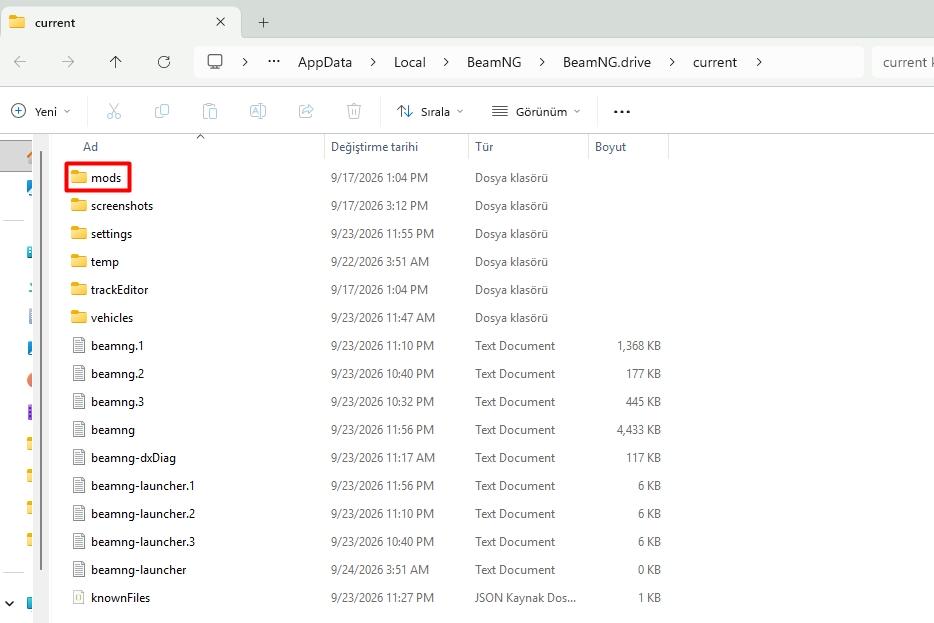
- Download the mod ZIP file.
- Open the BeamNG.drive launcher and click Manage User Folder > Open.
- Open the
modsfolder. - Copy the ZIP file into this folder.
- Start the game. Vehicles appear in the vehicle selector (Ctrl + E), and maps appear in Freeroam.
Mods installed this way can be turned on or off in the game from the Mod Manager.
Mod Not Showing Up?
- Did you extract the ZIP? Put the ZIP file itself in the folder, not the extracted files.
- Is it in the right folder? In Method 1, vehicles go in
content\vehiclesand maps incontent\levels. - Did the game update? Check the game version on the mod’s post. Older mods may not work on newer game versions.
- Did you restart the game? New mods are loaded when the game starts.
Still not working? Leave a comment on the mod’s post with your game version, or contact us.
Want to know how we check every mod before publishing? See How We Test Mods.
Recent Comments